

Hello and welcome to this third article on Backing Up your Data. Today I am going to look at how to back up your files using a memory stick (This can also be used if you have an external hard drive).
Introduction to Memory Sticks:
First I want to explain a few things about memory sticks to ensure that you get the best possible experience when using them.
The three types of connector used on memory sticks that you are likely to use are: USB 2.0, USB 3.0, and USB-C. There are other 3.0 versions, each faster than the other, but for the sake of simplicity I am calling them all 3.0. Below is an image (from left to right) of a: 2.0 memory stick; a 3.0 memory stick with its blue identifier easy to see; a 3.0 with its blue identifier slightly obscured; and a USB-C memory stick. With the exception of the Type-C, all of the below sticks can work in each others USB ports found on the side of a laptop or the front of a desktop.
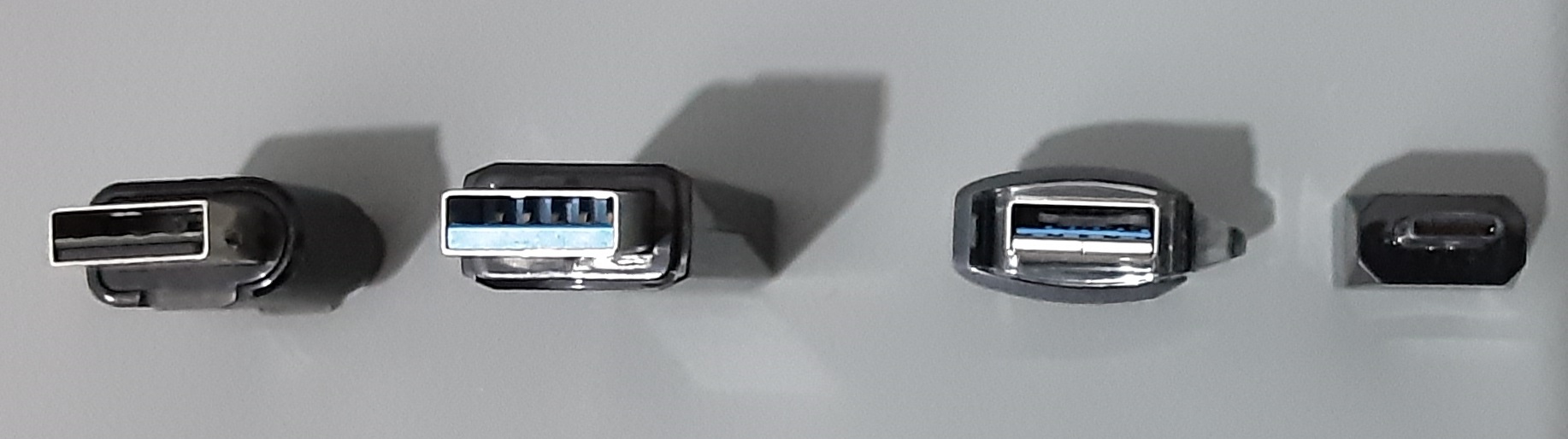
Older computers, usually five years or so, do not have USB-C ports. It helps to know which type of stick you have, both to make sure it fits, but also because its type impacts transfer speeds, 2.0 is the slowest, while the 3.0 variants get progressively faster (the slowest is still significantly faster than a 2.0), the USB-C is the fastest, and faster ones are also available.
I should note that the type of port on your PC will also impact transfer speeds as a 2.0 port can only transfer at 2.0 speeds while a 3.0 can transfer at both 3.0 and 2.0 speeds. This gets even more complicated with newer computers that have started to use 3.0 ports designed for the faster 3.0 variants (don’t worry regular 3.0 and 2.0 sticks still work with them). USB-C is becoming more common now and should be easy to identify due to its different, more circular shape.
Before I move on, I should also warn you that if you are backing up data using this method, it is better to get one made from metal as opposed to plastic as the cheaper plastic ones can break easily if pressure is applied to them or if the USB port on the computer is too tight.
How to Back Up Your Files:
Now that I have covered the boring part, it is time to backup your files. The video below covers the following steps in a more visual manner.
- Insert the memory stick into a USB port, a window should appear showing the contents of the stick (my USB stick was empty). If a window does not appear don’t worry, look for a message on the right hand side of your screen that asks what you want to do with “Removable Media”, click “explore files” and the window should open.
- Next find the files or folder that you wish to back up (In my case it was a folder called “Files to Backup” in my Documents folder) and Right click. Select “Copy” from the menu that appears (make sure you left click on the folder, which I didn’t do the first time).
- Now go back to your memory stick and Right click again where you want to copy them to, and click on “Paste”.
- This will either take a second, a few minutes or a few hours depending on your USB stick and the amount of files you are transferring.
- Once the files are transferred, head to the bottom right-hand corner of your screen and click on the arrow pointing up, click on the memory stick logo and then click on Eject “name of memory stick”.
- After a few seconds a message should appear saying that it is safe to remove the memory stick from your computer.
Note that in a Windows Update a while back, Microsoft made it so that removing a memory stick without following steps 5 and 6 above no longer causes as many problems as it used to, that being said if you are backing up valuable data it is better not to take any chances.
In addition, don’t forget to make multiple backups of your data as memory sticks can fail, some more than most, so try to use a combination of memory stick and cloud if possible or at least use a few different memory sticks in case one or more fail.
I hope this article has helped you backup your data in a relatively easy and low cost manner, the next time I will be looking at one of the more complex ways to backup your data using software. With that, if you have any questions or need help you can find contact details here, or you can post them in the comments below or on Facebook. You can also post suggestions for future articles there too.
 Tech Advice