
Welcome to what is likely to be my last blog post on the topic of backing up your data. Today I will be looking at the ways with which you can back up your data from a smartphone or tablet. There are two ways to do this:
- Using cloud storage
- Using a memory card or stick
Before I begin, this information only applies to Android devices as I do not have up to date knowledge or experience with Apple devices to comment on them.
Lets start by looking at cloud storage, as mentioned in previous articles Google Drive and OneDrive are the two most common (and free) cloud storage providers for consumers, partly because they come pre-installed on most phones/tablets (Google Drive) and computers (OneDrive). While OneDrive is the easiest to use on a computer, Google Drive is what you will want to use on your mobile device. The reason for this is that when you log into your Google account when setting up any Android device, you are automatically logged into any Google apps pre-installed on the device, including Drive.
To change what data Google will back up, you will need to find the “Backup” section in your devices settings. The easiest way to find it is by opening the settings app and entering “backup” into the search bar at the top of the screen (you may need to tap a small magnifying glass in the corner of the screen to reveal the search bar on some devices).
In the search results look for options such as “Backup”, or “Accounts and backup”, this is what you are looking for. Depending on the device you may have a number of options for backing up such as one for Google Drive, another for OneDrive and another that is manufacturer specific such as Samsung Cloud. For the purposes of this tutorial choose Google Drive.
A screen such as the one shown below should now appear. On this screen you can see how much data Google Drive is storing for you and what data from this device it is uploading. On a smartphone it may store your call history and text messages, but it can also store any photos or videos you take as well.
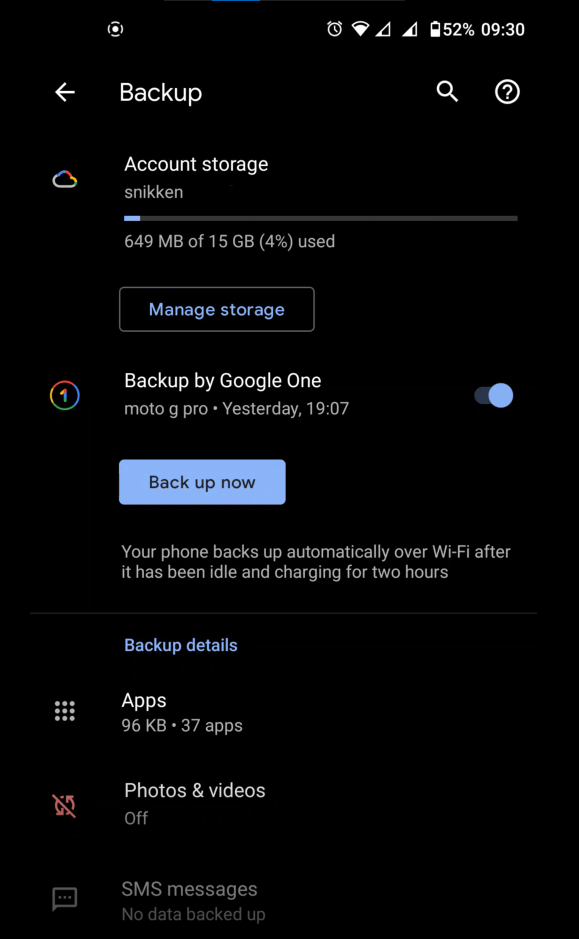
To change any of these settings tap on one and move the switch to the on/off position to start/stop backing up that particular type of data. Unfortunately Google seems to take an all or nothing approach to backing up some data as Photos & videos can be changed but Call history, and others cannot be changed. However, if you really don’t want this data backed up you can stop Google backing up your data by setting the switch beside “Backup by Google One” to the off position (Google One is essentially an app that can be used to manage backups independently of Google Drive and settings). It should also be noted that backing up data usually requires a Wi-Fi connection and it can take awhile depending on how much data has to be backed-up and the speed of your internet.
Aside from Google Drive OneDrive, Dropbox, and device specific cloud storage providers such as Samsung Cloud, can also be used to back up data from your device. However there can be limits on what you can back up especially when using non-Google or manufacturer options such as OneDrive. For example you can transfer documents and photos to OneDrive but you can’t set it to automatically backup call history.
The next method of backing up data is by using either an SD memory card or a memory stick. While you could use the same method I described in a previous blog article and just copy and paste between the devices, there is another option. On some Samsung devices you can find an option in the backup settings to use an app called Smart Switch to transfer data to a memory stick or card, this can then be inserted into another device and restored, again using Smart Switch. If you are buying a USB stick for this make sure that it has the correct connector for both devices, usually this is either USB-C or Micro USB (not to be confused with Mini USB).
So that concludes my final blog article on backing up your data, I hope you have learned something from these articles and if you have any questions, or suggestions for future content feel free to leave them in the comments here or on Facebook, or you can contact me using the information found here.
 Tech Advice