
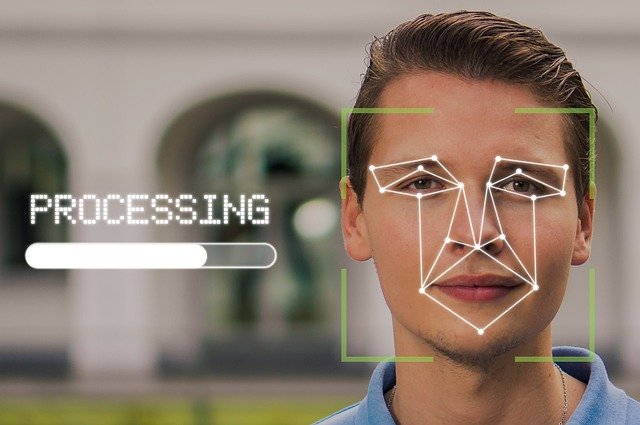
Hello and welcome to another Tech Advice blog article. Today’s article was inspired by recent reports that Microsoft wants to make passwords a thing of the past when logging into Microsoft devices and accounts (News article from The Verge). This does not include PIN numbers that can also be used to log into Windows computer as a backup. The reasoning behind this is that passwords are too easy to crack while PIN numbers, and biometrics are more difficult (but not impossible) to crack. Today I am going to explain the other options you may want to consider especially if you are buying a new computer during the Black Friday/Cyber Monday sales next month.
Let’s start with the easiest one to set up, a PIN number. Chances are that you have one already set up as Windows always tries to get people to set one when they turn on their Windows PC for the first time. If you haven’t, follow these steps:
- Open settings
- Click on Accounts
- Next click on Sign-In Options
- Click on Windows Hello PIN
- Click Set Up and follow the instructions to set your PIN number
Your new PIN number will replace the need for you to enter a password each time and can be used if your biometric device stops working.
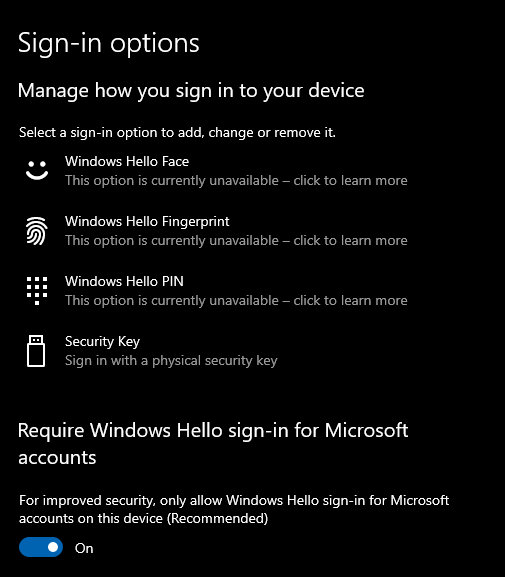
There are two types of biometric sign-in, Facial recognition, and Fingerprint recognition. Both require specific devices to function; however, more and more laptops are coming pre-installed with one or the other and sometimes both. Be aware that not every webcam can be used as a facial recognition scanner, if you are unsure look for “Windows Hello compatible webcam” or something similar in the description of the laptop or the webcam. A Windows Hello webcam allows you to add biometric functionality to your desktop PC too, as most of these come with no integrated biometric scanners. To set up facial recognition on your computer follow the steps above but at step 4 click on Windows Hello Face instead and click on Set Up to add facial recognition to your device.
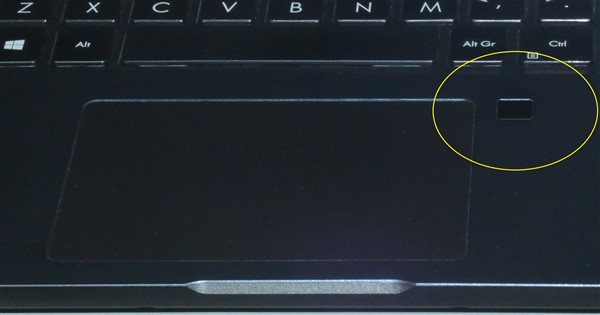
Some of you may already use a fingerprint scanner to unlock your smartphone, and the same idea applies to many newer laptops, especially those aimed at businesses. If you are not sure if your laptop has one look for a small black square on the keyboard of the laptop, near the power button or near the touchpad; in addition, Windows will usually tell you when you start the laptop for the first time if you have one. If your laptop does not have a fingerprint scanner you can buy one that connects to the laptop like a USB stick, unfortunately at the time of writing I have not tried any of these so I cannot recommend a specific brand, but I will post an update on Facebook if this changes.
Another option when logging in is to get a physical security key for your device. This is common in large companies where employees may be working on sensitive information. These “keys” can take many forms, from special cards requiring special readers to be used, to customised USB sticks. For the sake of simplicity, I am going to be looking at the USB key type. These devices are known as FIDO2 security keys after the group that manages the standards of the encryption used. There are many providers of these keys, and it is worth taking the time to research them (or contact Tech Advice for some Buying Advice). A list of vendors can be found on Microsoft’s web page on the topic here, but for regular consumers the Yubico Yubi Key is very popular but there are reports of difficulties in using it so be careful and do some research.
In terms of set up and ease of use I have found that the most reliable method of signing in without a password involves using a PIN and one of the biometric methods. For me this is facial recognition as I have a high-quality facial recognition device (the Tobii Eye Tracker 5, not sponsored), but even this fails occasionally due to issues with the PC itself and not the tracker making a PIN essential to avoid getting locked out. Personally, I think that as good as the hardware is there is still room for improvement especially on low budget devices that don’t have any biometric scanners and that Microsoft needs to remember this if they eventually decide to remove passwords for good.

Thank you for reading this article and I hope you have learned something useful from it. As always if you have any suggestions for future blog articles post them in the comments here or on Facebook or email them to help@techadvice.ie.
 Tech Advice