
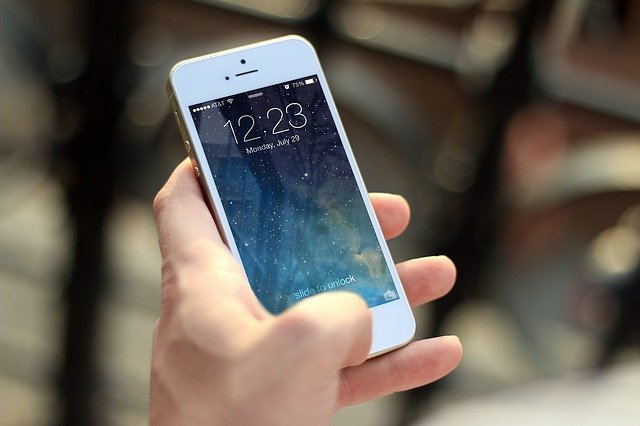
Hello and welcome to the latest Tech Advice blog article. As happens every year, a new catalogue of smartphones from giants such as Apple and Samsung have either been released or launched by now. This meaning that either some of you have bought them or are planning on buying last year’s version during the Black Friday sales. As a result, you either have, or will have, at least one spare smartphone in your home. In this article, I am going to look at 5 things you can do with those spare smartphones (the more of them you have the better).
Just a quick note regarding the first two options, make sure you reset the phone first. Most resellers will ask you to do this anyway, but to protect your privacy you should do this before giving it to someone else.
To reset your phone (Android, e.g., Samsung, Motorola, Nokia):
- Go to settings
- Scroll down to “System”
- Press “Advanced”
- Press “Reset Options”
- Press “Erase all data (factory reset)”
- Follow the instructions given by the device
1: Donate it
The easiest thing to do with it is to either give it to a family member or a friend, just remember to reset it first.
2: Sell it
If you spent €1000 on a top-of-the-line smartphone a year or two ago but still want a new one, how about selling the old one? There are a few ways to sell it. First, you could sell it to reseller such as CEX (webuy.ie), sell it online through the likes of eBay, or just ask a friend if they would like to buy it from you.
3: Use it as a dedicated Smart Home/Virtual Assistant Controller
This one is a more niche use of your old device and only applies to those using smart home devices around the house. It should also be noted that you could simply use your new phone for some of these functions. To begin, you will need an old phone, a Bluetooth speaker, and of course, some smart home devices. This combination will allow you to control your smart home by simply calling out “Hey Google” followed by a command such as “Turn bedroom light on”. For best results the phone must be connected to your home wi-fi, and both the phone and speaker need to be charged the whole time (you can have them plugged in the whole time if you like but keep an eye on the phone to avoid a fire from overheating).
This option is easy to set up if you have already set up your smart home with Google Home, if you use another platform that’s fine, you can either use that instead or allow Google Home to take control of them instead.
4: Use it as a Webcam
With so many of us now working at home, webcams have found an important place in many of our working lives. The only problem is that so many webcams are either very expensive, clumsy to set up, or the quality is poor. Let’s say you have an old smartphone (this also works with a tablet) with a great camera, well then you have a great webcam too! For the best results you will need an internet connection with a decent speed, and smartphone holder to attach to either your computer/laptop monitor or desk. To “turn” your old phone into a webcam you will need to install the DroidCam app for your phone and the DroidCam software for your computer.
To following steps will help you to set up DroidCam:
- Install the DroidCam app from the Google Play store
- Download and install the DroidCam software for Windows from www.dev47apps.com (this is the app’s official website).
- To connect both devices, first make sure they are both connected to the same wi-fi network.
- Next, start DroidCam on both your phone and on your computer.
- When you start DroidCam on your phone you will get a help screen that tries to help you set up the software, when you are ready press “Got It”.
- Now check DroidCam on your computer, you should see a box asking for a Device IP and a DroidCam Port number.
- Enter these numbers as provided in the smartphone app
- Make sure you tick the “Audio” box if you do not have a microphone on your computer.
- Click “Start”
- At this point you should see an image being transmitted from your phone to your computer. You can now move the phone wherever you want for the desired view, however you may need a phone clamp or arm to keep it in place while using the phone as a webcam.
If you are having any issues, feel free to contact Tech Advice for help.
5: Use it as a Mouse
The last thing you could do with an old smartphone, is use it as a touchpad for your desktop computer or if your laptop’s pad stops working. For this you will need the Remote Mouse app for your phone and the corresponding piece of software for your computer.
To set up remote mouse:
- Install the “Remote Mouse” app from the Google Play store.
- Download the Remote Mouse software from www.remotemouse.net and install it.
- Make sure both devices are connected to the same Wi-Fi network.
- Open the Remote Mouse app and software on both devices.
- On your computer, either note the IP Address or click “Show QR Code”. On the phone press the + icon in the top right corner and press the corresponding option to connect both devices.
- For the IP Address type the IP Address from earlier into the app and press the check mark in the top right corner.
- To use the QR code allow the app to take photos and point the phone at the QR code shown on your computer.
To conclude this article, I just want to reiterate that there are other things that you can use an old phone for instead of just leaving it in a drawer for a few years, as I have just shown. If you need help feel free to contact Tech Advice using the information found here. As always, leave any suggestions for future content either here or on Facebook.
 Tech Advice
This design is steller! You most certainly know how to keep a reader amused. Between your wit and your videos, I was almost moved to start my own blog (well, almost…HaHa!) Great job. I really loved what you had to say, and more than that, how you presented it. Too cool!
LikeLike