

Hello and welcome to another Black Friday inspired blog article. Today I am going to be looking at the different parts of a computer that you may hear about when buying a new computer. Be advised that this one article can’t possibly cover every name/type of part out there, but it should cover the basics.
CPUs:
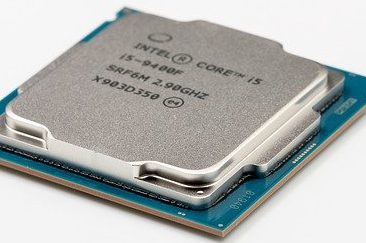
Let’s start with the CPU, or Central Processing Unit. This part is responsible for making all the complex calculations that the computer needs to make to run its many “processes”, hence the name. Many lower end CPUs also come with a GPU (more on those later) built in, however these are far weaker than the independent, or “dedicated” ones.
There are two brands of CPU: Intel and AMD. Intel ones have words like Pentium, Core i3/5/7/9 after the word Intel. The normal rule is that Pentium is the slowest, followed by i3, i5, i7, and i9, however, each Pentium and Core CPU has different generations so an i3 10th generation could be faster than an i7 5th generation. For most regular users Pentium and Core i3 are sufficient for daily tasks. AMD CPUs can be more complex as there have been many different types and names over the years, they also tend to have more powerful GPUs attached to them, but this could just be marketing speak as my own experience has shown little difference. AMD CPUs usually have names like AMx (x stands for the model number) and Ryzen x, the Ryzen CPUs are the better ones comaprable to the Intel Core i CPUs.
When it comes to CPUs, most basic users don’t need to worry too much, just be aware with all computers that the less you pay the less you will get, usually with Black Friday sales and others making this more difficlut to discern.
RAM:
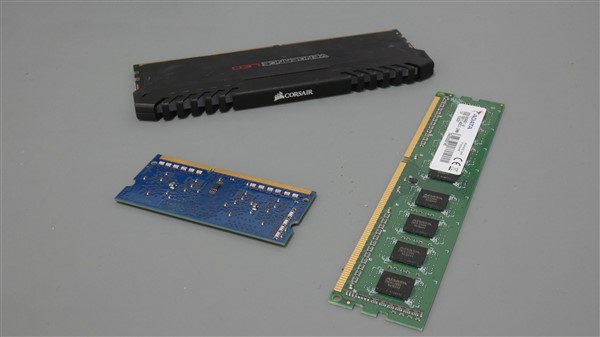
RAM, or Random-Access Memory, is the short-term memory of the computer. It takes information from the Hard Drive and stores it until the CPU needs it to perform a task. The difference between RAM and a Hard Drive is primarily that a Hard Drive keeps your information even when you turn it off, but RAM requires power to hold the information, so it gets wiped every time you turn off the computer. The other difference is in speed, RAM is much faster than even a high-speed SSD Hard Drive, therefore information is sent to the RAM before being sent to the CPU. Some creative computer enthusiasts have found a way to use some RAM as a Hard Drive making it a super-fast storage space, however they must re-create it every time the computer is turned off and backup the data stored before doing so.
When shopping for a new device the only thing you need to worry about is how many gigabytes (GB) of RAM the device has. Anything lower than 4GB is a waste of money as the computer will be too slow to use, for basic use 4GB is enough, if you want to type documents, listen to music, and read references online at the same time, 8GB will allow for a smoother experience. Essentially, the more RAM you have the more tasks you can do at the same time.
Hard Drive:
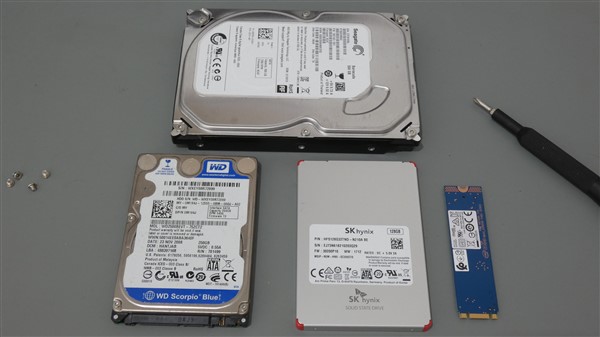
If you have been reading my articles for a while now, some of the upcoming information will at least feel familiar from my articles on computer upgrades, and hardware symptoms. As I mentioned above, a Hard Drive stores all the data your computer needs to function and is essentially the long-term memory of the computer, i.e., information that is stored there stays there until needed. Unlike RAM, as mentioned in the previous section, data stored on a Hard Drive does not vanish once the computer is turned off (if it does then you have a serious problem).
When choosing a new computer there are two things regarding a hard drive to consider. First, the size of the Hard Drive is measured in gigabytes (GB) or terabytes (TB), the higher the number the more files you can store, but also the more expensive the device. At this moment in time, 250GB is the minimum I would recommend as anything lower risks running out of storage space, and in turn slow speeds very fast. If you must go lower do not go lower than 128GB and stay well away from 32GB/64GB as these cheap machines are useless after a while and usually can’t be upgraded.
The second thing to consider is the type of hard drive. There are three types you may come across. eMMC, Mechanical, and SSD. An eMMC is the slowest, cheapest, and only comes in 32GB and 64GB, avoid these, or you will be kicking yourself later. A mechanical hard drive is the most common hard drive and is what most people mean when they say “Hard Drive” especially on the cheaper end of devices. While they often come in large sizes such as 500GB and 1TB (1000GB), they are quite slow especially in cheaper devices where the manufacturer has cut corners on their quality. The good news is they can be easily upgraded to an SSD by a technician if needed. An SSD (Solid State Hard Drive) is the fastest of the three, they are more expensive and come in three sizes, SATA, M.2, and PCIe. They are becoming very common, with devices having 128GB and 250GB hard drives usually having them. There are also laptops out there with a 128GB SSD and a 1TB mechanical hard drive at very reasonable prices.
At the end of the day, which hard drive you need will depend on what you are going to use the computer for, surfing the internet would require a smaller one compared to using it for photo or video editing which would require a very large one or even two hard drives.
GPU:
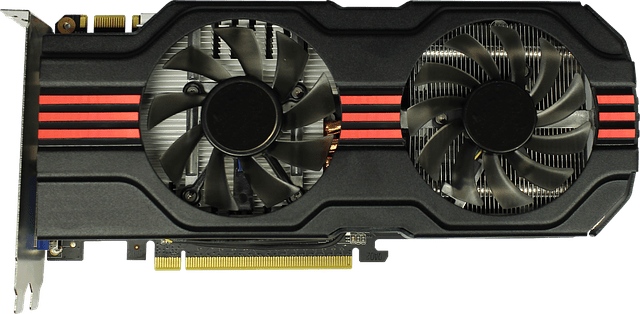
A GPU, or Graphics Processing Unit, turns the data stored on your hard drive into the image you see on screen. This part is one of the parts that contributes the most to the cost of a computer and it can vary wildly. A basic GPU that is part of the CPU might contribute less than €100 while a high-end one for gaming might add between €1000-€2000 to the cost of a computer.
The names you are likely to see are Intel HD xxx (x standing for the model number), Intel Iris, Nvidia GTX/RTX xxx, and AMD Radeon/Vega xxx. Intel’s GPUs are normally low-end devices that are purely for displaying photos, videos, and other things that average users use a computer for. Nvidia and AMD GPUs are used for high-end photo and video editing, along with gaming. The GTX series is the older generation of Nvidia GPUs and should be cheaper, while the RTX series can range from between €300-€1000. AMD is a direct competitor of Nvidia, so their GPUs are similar in price with Radeon being the equivalent to the RTX and some GTX models.
For basic users, an Intel HD xxx is sufficient for daily use and can even run some older games. If you are looking for the newer Nvidia and AMD GPUs be very careful as there is a shortage in GPUs at the moment due to what is known as Cryptomining, so they are either out of stock or being sold at extortionate prices on sites like eBay.
OS:
The OS, or Operating System, is the software platform that the device is running on. Examples include Windows 10, Apple MacOS, Linux Ubuntu, and Google Chrome OS. Most of you will have heard of Windows 10, and Apple’s various OSs, the other examples are less common with Chrome OS, not to be confused with the browser, being used on some cheaper laptops. With the launch of Windows 11 you will start to see computers advertising themselves as running Windows 11 or being compatible with it. This is because Windows 11 has some very specific hardware requirements meaning that most older computers are not compatible. So, if you really want Windows 11 make sure it is already installed on the new computer or check for a label saying that it will be compatible with it when Microsoft makes it available for the device.
When choosing a Windows 10 computer you also need to be aware of the different licenses available, Home, Pro, Education, and Enterprise are the ones you are likely to see. This is important as only the Pro and Enterprise versions are authorised for business use, while the Education version similarly gives advantages that are only available to schools and colleges.
Conclusion:
So, there you have it, a longer, but hopefully informative piece that will help you decide on the type of computer you need. Don’t forget that Tech Advice provides a Buying Advice service if you have any specific needs; the service costs €15 per hour and will suggest three options to choose from.
Just remember that unless you are using the device for games or media editing you really do not need to spend more than €500-600 on a new computer as there are plenty of cheaper options for internet and Netflix users.
 Tech Advice