

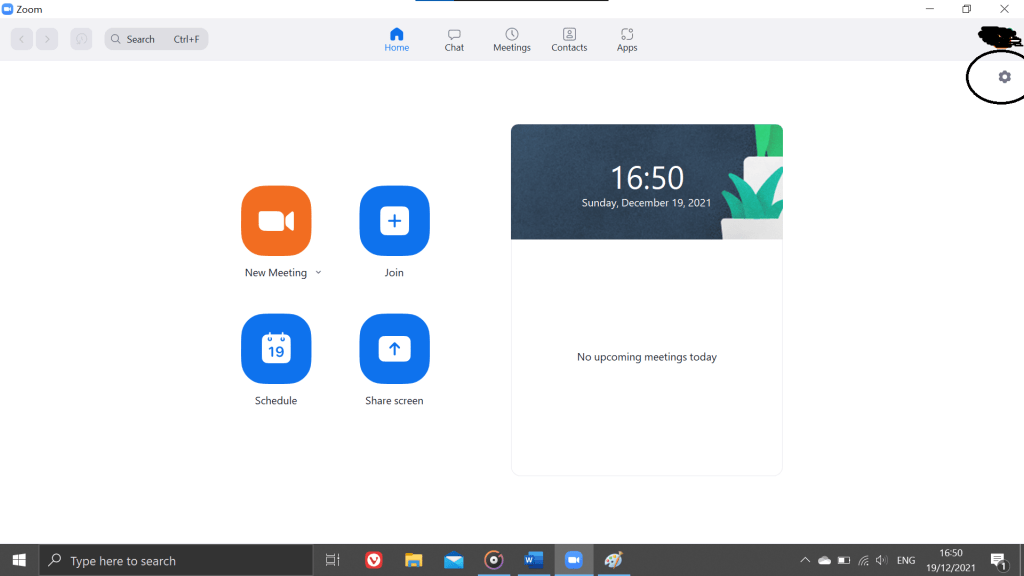
Welcome to another Tech Advice blog article. Today I want to follow up last week’s article on using Zoom, by highlighting some options in Zoom’s settings that might improve your experience. To start, open Zoom’s settings by clicking the small cog symbol in the top right corner.
The first setting is under “Video”. In this category, look at the options under “My Video”. The “Touch up my appearance” option may be of interest to some, but the one I want to highlight is the “Adjust for low light” option. This option is very useful during the winter months (such as now) or if you notice that your camera is not very good at picking up ambient light.

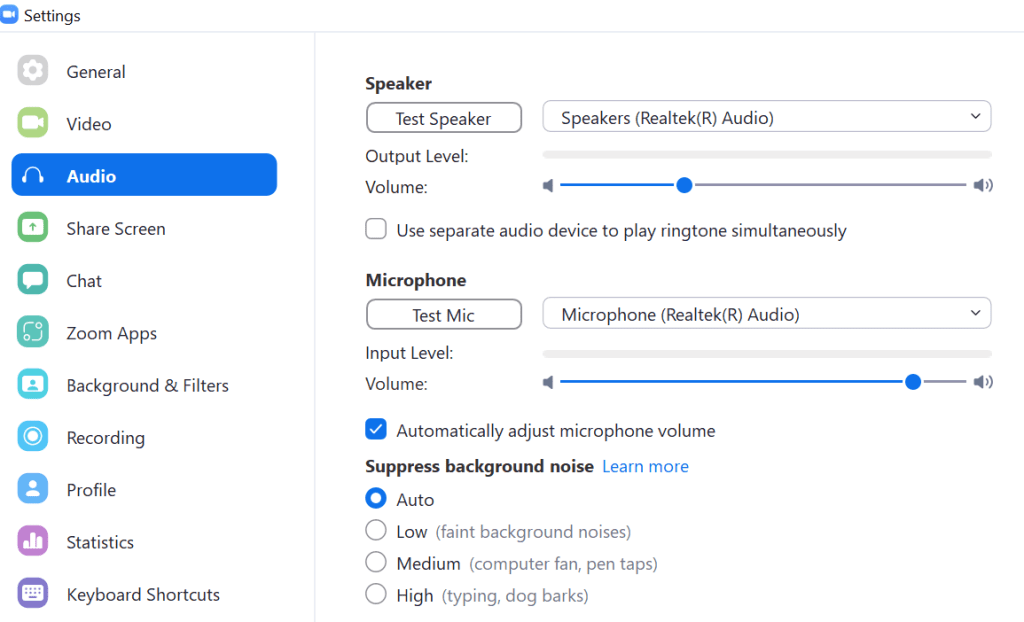
The next settings of note are under “Audio”. First, I wish to point out the “Test Speaker” and “Test Mic” options. These are two very useful options that I would encourage everyone to use before starting their first meeting to make sure that both your microphone and speakers are working; if you call Tech Advice looking for help you will probably be asked to do this. The next option that may come in handy is “Suppress Background Noise”. You can allow Zoom to change it automatically, or if you know a certain noise will occur during your calls you can set it accordingly. For example, if you have a dog that barks at anything that moves, you should set this to “High”.
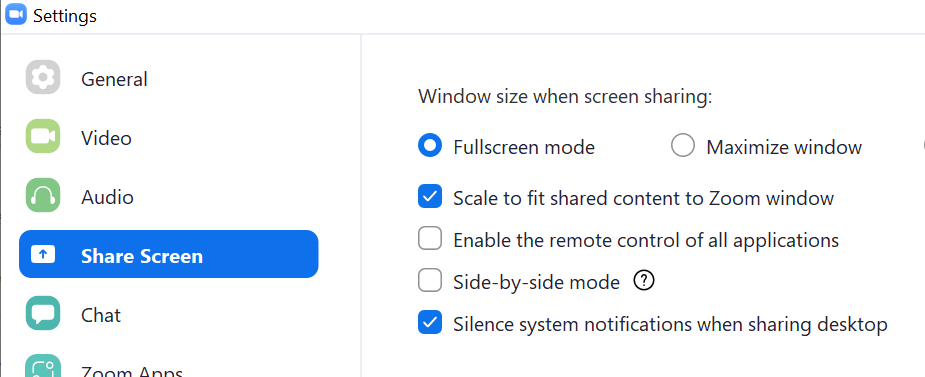
The next option should only ever be changed if asked to by someone you trust, occasionally we may ask you to do this in a Zoom call, but normally we use a different, dedicate piece of software. The setting I am referring to is found under “Screen Share” and is the third setting from the top “Enable the remote control of all applications” this will give any participants the ability to control shared content on your computer; malicious persons could use this to negatively impact your computer/personal files.
Now for some fun settings, found under “Background & Filters”. The “Virtual Backgrounds” allow you to choose one of Zoom’s built-in backgrounds to remove whatever is behind you, handy if you have personal photos hanging in the background, or the room is a mess behind you. Options include a blurred background, landscapes, or an option to choose your own image form your computer by pressing the “+” icon to the right. You can also apply filters from the “Video Filters” tab, such as a noir colour filter, a frame around your camera, cartoon clothing such as hats and glasses to your face, and various other symbols and icons. In addition, you can also alter your appearance slightly by clicking the “Studio Effects” option in the bottom right. This allows you to change the shape of your eyebrows, add facial hair, and change your lip colour. Admittedly, most of these options are purely for fun and probably not recommended for serious work meetings.

For those with accessibility needs, Zoom has options related to Closed Captions, Chat Display size, and Screen Reading.
That’s it for today’s article, I hope you found something useful in it and feel free to contact me if you need help or noticed another setting that others might find useful. As always if you gave any suggestions for future content let me know in the comments.
 Tech Advice