

Hello and welcome to this year’s first Tech Advice blog article. Today I want to give a few “first aid” tips for when things go wrong, or an accident happens when using your computer/laptop.
Computer Behaving Strangely?
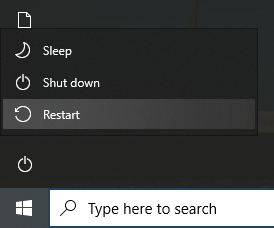
Let’s start with an easy one. If your computer is behaving strangely such as applying updates constantly, software not loading properly, or just not behaving as it normally would the first thing you can try is to “Restart” your computer. To be clear, press the “Restart” button and not turn it on and off again as this does make a difference. Windows uses this as an opportunity to repair settings and other background processes that may not be functioning properly so simply turning the computer on and off does not achieve the same result. If restarting does not work, there may be another issue so contact a professional for further advice. Finally, Restarting and Resetting are two very different things as Restarting does not affect any of your personal data and there should be no negative impacts on your computer, while Resetting is the opposite in that it can delete everything if used incorrectly.
Software Freezing/Not Responding?
The next issue that might occur from time to time is a piece of software not responding or freezing. This will be identified by “(Not Responding)” being next to the name of the software at the top of your screen. Freezing can be identified by the screen taking on a frosted appearance. There are five things that you can try to close the program.
- Wait until Windows gives you the option to Wait or Close the Program.
- Right click the icon of the software and click “Close Window”.
- Hold Alt and press the F4 button, the program should immediately close.
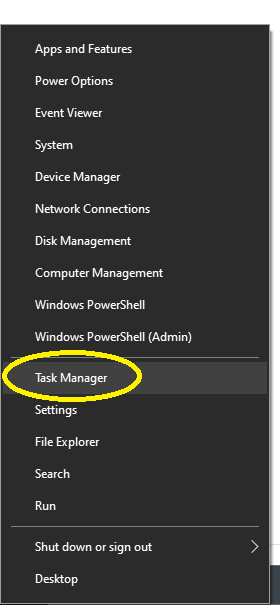
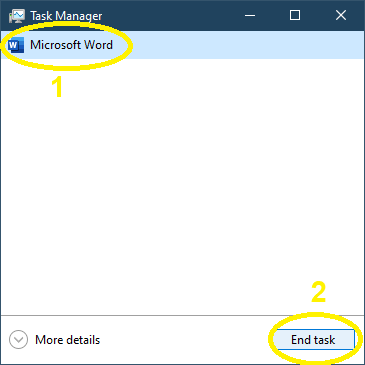
- Right click the Start Button, click “Task Manager” from the list, if you can see the program in the list click it and then click “End task”. If you can’t see a list of programmes, you may need to click “More details”, just be careful and make sure that you click on the right program.
- The last option is to just shut down your computer.
No Sound?
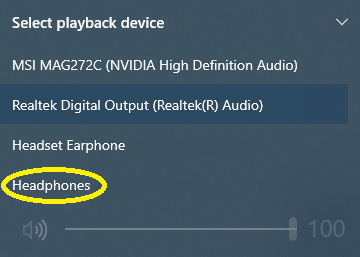
The next issue you may run into is that your headphones or speakers are not working, especially if you use the computer for Zoom. To change where the sound comes out of look for the speaker icon in the bottom right of your screen. You should see Speakers/Headphones (Insert Name of Device), this is the device that the sound should be coming out of. If, for example, you wish to change from your speakers to headphones (with the headphones plugged in of course) click the “Speakers” and a drop-down list should appear, click the option that best describes your headphones. This issue should rarely happen as simply plugging in the headphones should automatically redirect all sounds to them.

Liquid Spill First Aid
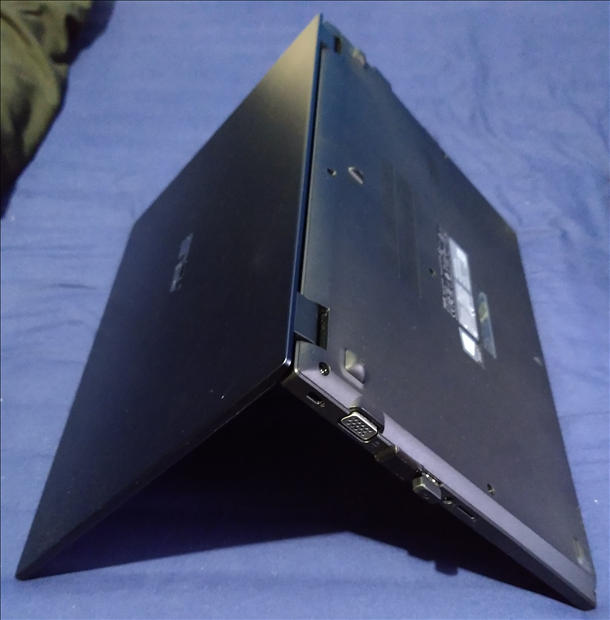
Now for some hardware accidents. If you spill liquid on your laptop the first thing you should do is turn off the computer, plug it out, and remove the battery (only if it is easy to do). Next, turn it upside down to drain any liquid as quickly as possible to stop it entering the device. Now stand it up like a pyramid on a towel or other absorbent surface to drain. This next bit is important, if you spilt water on it, place it in a warm place to dry out for at least 24 hours; however, if you spilt anything else, get it to a technician straight away as some liquids can cause more damage to internal parts than others, a technician can open it up, clean it and check for any damage. It is worth getting a technician to look at it regardless as you may be unable to see that liquid remains as it could be inside the device. Turning on a laptop with liquid still inside could destroy parts of the motherboard which are usually too expensive to replace, if not impossible.
Removing a Stuck USB Device
If you accidently plug a USB device into the wrong port of your laptop (its easier than you think) and can’t get it out easily, be careful, as you could damage the port or the USB device if you put too much force on it. First, turn off the laptop, just to be safe. Next, gently wiggle the USB device from side to side and see if it comes loose. If not, gently pull on it while keeping the laptop in place, don’t pull too hard or you might damage something. If it still won’t budge you may need to have it looked at by a computer technician.
Conclusion
That’s it for this week, I hope you won’t need to use the information in this article, but it is still good to know some of it just in case. If you need help with any of the issues raised in this article, feel free to contact Tech Advice using the details found here. If you gave any suggestions for future articles feel free to leave them in the comments.
 Tech Advice