
Introduction:
For the last few weeks, I have been using Windows 11 on this laptop. Today I want to give you my impressions from using it for both personal use and work use. I should mention that Windows 11 is not available on all computers and laptops as it has very strict hardware requirements that I looked at in my article introducing Windows 11 which you can find here.
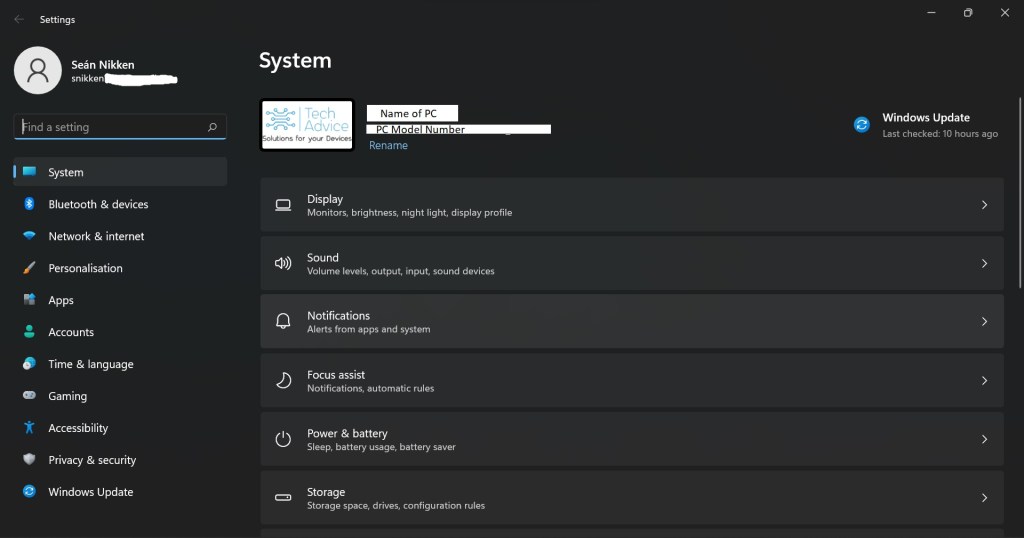
Just a note on the images used in this article, I use dark mode on my devices, this means that where you see a black background, especially in the settings and file explorer images, it may be white on other people’s computers, I do this because I find the white background a little harsh on my eyes.
Download and Installation:
Once Windows informed me that I could safely install Windows 11 I began the installation process. The installation process, from clicking “Install” to logging in took about 3 hours. Your experience may differ depending on your internet speed and computer hard drive type. I used a 3 MB/30 Mb internet connection and a NVMe super-fast hard drive. The installation process is like a slow Windows update except the changes are more noticeable.
First Impressions:
The speed of the installation process was a good first impression, however, from there it was very much up and down. I will go into more detail later but suffice to say, many elements of Windows 11 are the same as Windows 10 just with a new coat of paint, while some have been removed. That said I quite like the smoother, rounded edges of the various menus and the bit of colour that has been injected into the icons used for folders.
How it looks (User Interface):
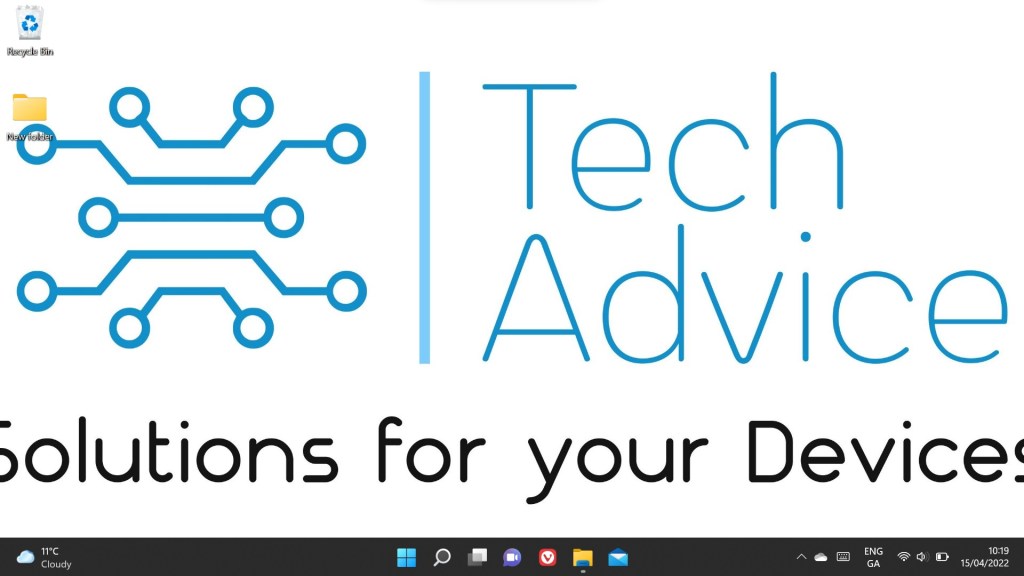
The best way that I can describe how Windows 11 looks is as a combination of Apple’s MacOS and Windows 10. It takes the central taskbar of MacOS (the buttons at the bottom of the screen) and its list of apps that replaces the start menu and combines it with Windows 10’s way of navigating windows and apps. This means that when you are looking for Microsoft Edge for example, you find it in the middle, bottom of your screen instead of the side, or you must press a central Windows button to look for it an Apple style start menu as opposed to the traditional Windows Start menu.
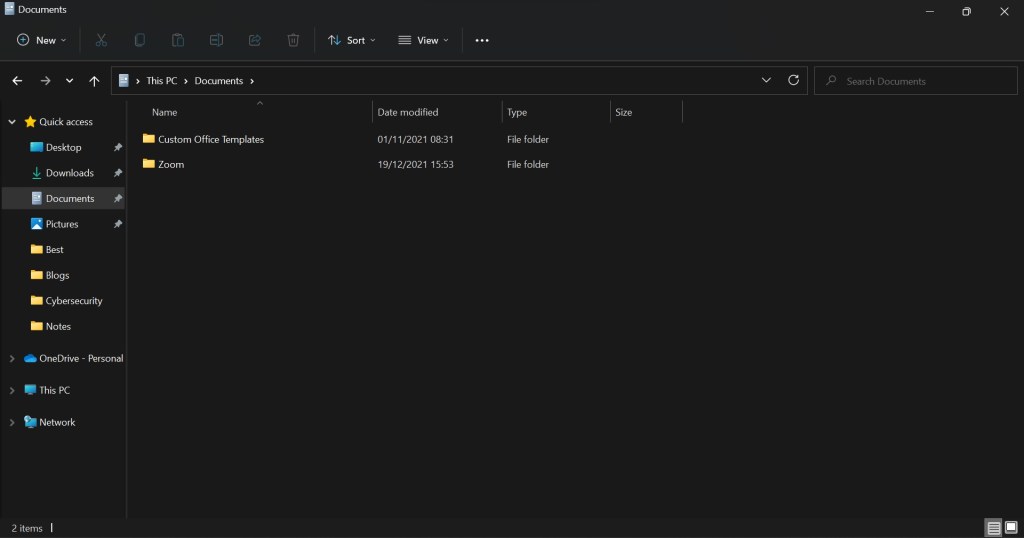
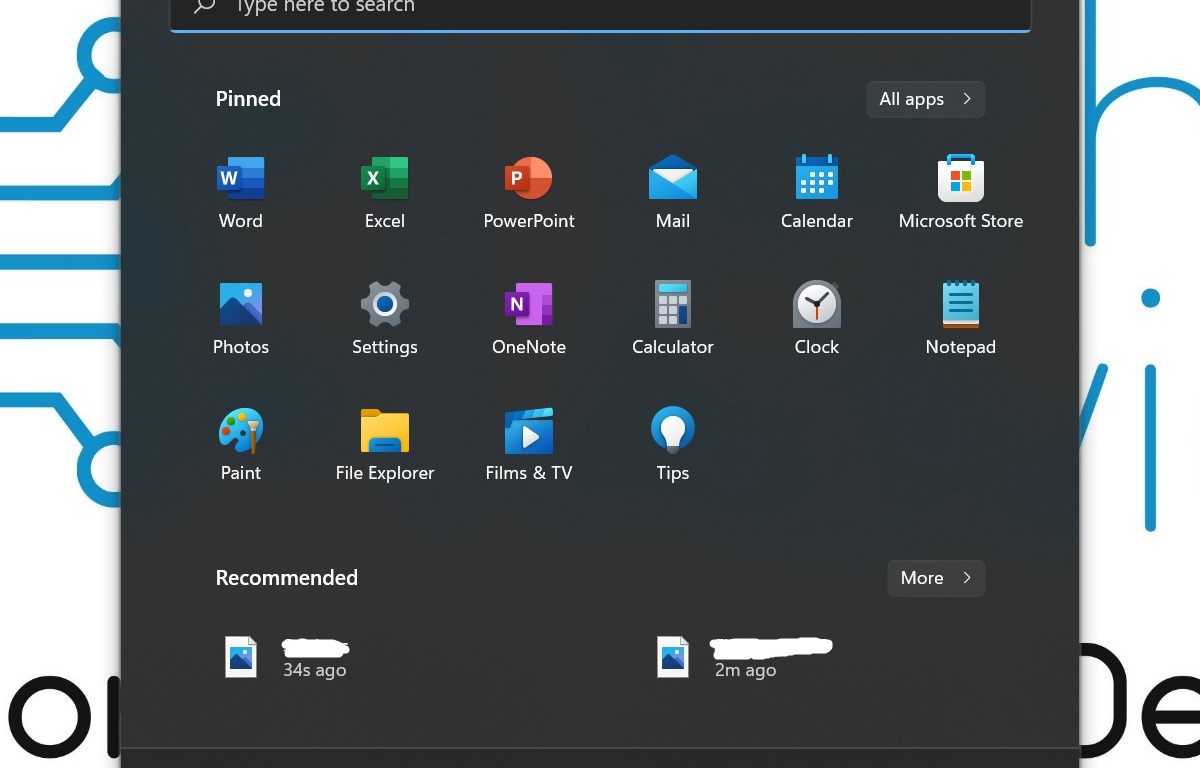
I feel that this makes the start menu a little bit more cluttered compared to Windows 10 where you could move shortcuts around a bit, resize them, and put them into groups. The new look though, does feel refreshing and the rounded corners on all the menus feels a bit more friendly especially when looking through the settings menu or other intimidating apps.
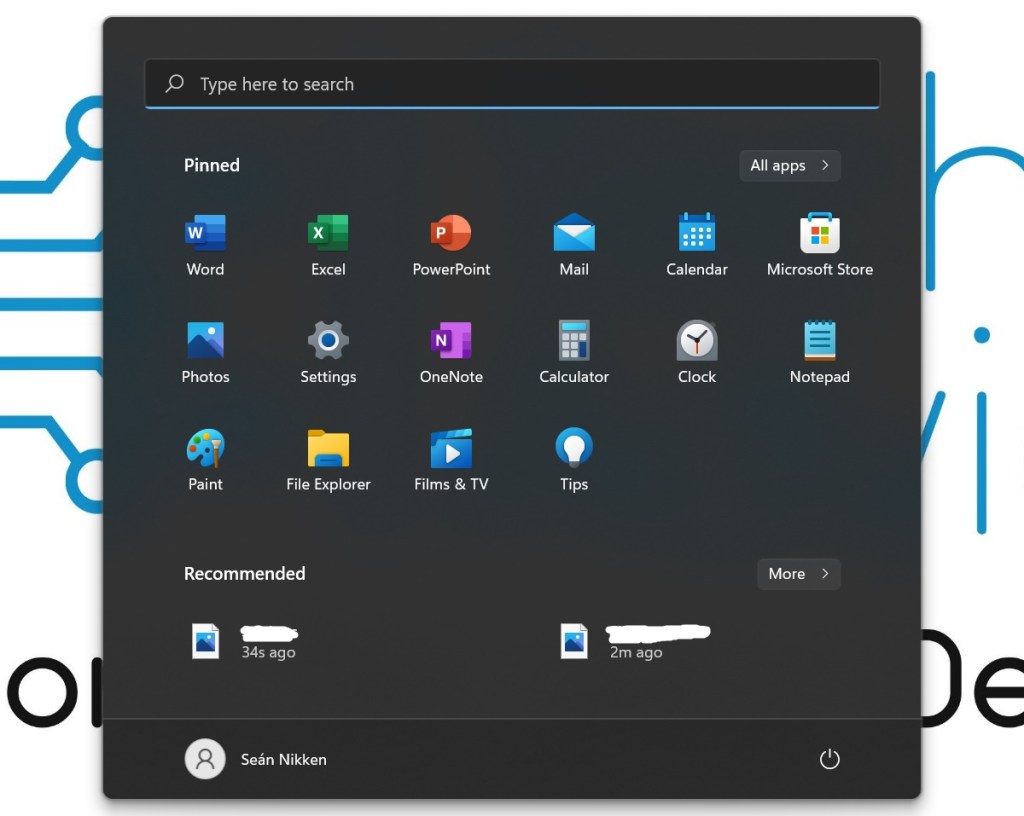
In file explorer (where you can find your pictures, downloads, and documents) the smoother style has also been applied. The first thing I noticed were the somewhat informative icons at the top representing the various actions that can be taken and applied to the contents of a folder. Actions such as adding a new folder or file can be quickly made using the “New” button accompanied by a “+” symbol instead of having to right-click or hover over an icon to figure out what it is in Windows 10. While this change still requires you to know what each button does, it makes it much easier to find the right button on subsequent usage. This is boosted by the reduction of options at the top which are now placed into sub-menus, split up in the case of “View” and “Sort”, or have been removed altogether (e.g., “Share”).

How it feels (User Experience):
In terms of how Windows 11 feels to use, it can take a little getting used to, for example a news pop-up is now where the Start button used to be, so each time I accidently go to the left of the screen the news pops up instead of the start menu. Aside from that, as someone who is using it for work as well as personal use, I feel it is easier to manage folders with the changes made to File Explorer shown above, the added security (more on that in the next section) makes me more comfortable using it for work, and the tidier menus help me find what I need quicker. The one issue that I have when using I for both work and personal use is that the Start menu is not very customisable like the one used by Windows 10. With Windows 10 I could arrange apps and folders into groups such as “Photography” with all my photo editing, printing, and folders grouped together, now they are just part of a list of apps that I use the most or are buried in the A-Z list of apps.
Security:
The biggest feature of Windows 11, and why it took so long for me to be able to install it, is its overhaul of Windows’ security infrastructure. Both are the result of Microsoft requiring a TPM 2.0 module being installed in the computer. This module is a small chip that either comes pre-installed in some computers or can be installed on others. Unfortunately, very few computers, outside of business ones, have them, and even then, the manufacturer must support Windows 11. This has resulted in very few people being able to install Windows 11, and it is very likely that most of you won’t be able to either. That said, from now on most new computers should be compatible but only if they have been manufactured recently as opposed to bought recently.
TPM 2.0 allows Windows 11 to use enhanced encryption to protect your device and stop criminals from breaking into your computer as they would have before. It also makes Windows Security (formerly Defender) a more formidable Anti-Virus/Malware program; this allows casual users to forego third-party software like Avast, AVG, or Malwarebytes. While I would still recommend them, the option not to use them is more appealing than it ever was.
Best Parts:
Now I am going to summarise what I found to be the best parts:
- Reasonably fast download and installation.
- Enhanced Security through new hardware.
- Easier to manage files and folders with the update to File Explorer.
- The more visually appealing icons.
- The softer appearance of the settings menu and similarly intimidating menus.
Worst Parts:
One issue that I did not mention above is that some apps were merged or renamed. This can be annoying as the built-in music and video players have been merged into “Media Player”, while a separate app called “Movies and TV” is still its own app despite also playing videos (To be fair, it does have other features that would complicate the Media Player app).
The following are some issues that I feel dragged down the experience:
- Microsoft Edge being pushed at every opportunity (Just like Windows 10, but still and nuisance).
- The scaled back Start Menu.
- Difficult to comply with hardware requirements (TPM 2.0 computers are not easy to find among the many computers for sale).
Conclusion/Should you Upgrade?
Provided you can upgrade, it is very much a personal choice. The first thing you should ask yourself is if you are alright with learning how to navigate the new start menu. The second thing should be what you plan to use the computer for, if it is for work then the extra security might be of benefit to you, if it is for almost anything else then it may be best to wait.
It should be noted that Windows 10 is still many years away from being obsolete and Windows 11 is still in its early stages meaning that there are still issues that Microsoft must resolve and features that it plans to add.
So, to conclude if you are a business, have a spare laptop that can run it, or just want to be on top of the newest thing in technology, then give it a go. I would say however that they are is no rush for anyone to install it, yet.
If you have any questions about Windows 11 or if you want advice specific to your needs feel free to contact Tech Advice or comment below, I may do a follow up article on reader questions if enough of them are submitted.
 Tech Advice