

Hello and welcome to my latest blog article, today I am going to show you how to back up your data using the cloud, or to be more specific, using Microsoft OneDrive. In order to do so you will need a Microsoft account, chances are you already have one as Microsoft accounts are used for Outlook, XBOX Live, Hotmail, and Skype.
As I mentioned in the previous blog post, there are some security and privacy concerns that have been raised about cloud storage in general. These concerns are generally focused on how the servers storing your data may be in the USA (some are now in the EU and Ireland), the tendency of companies to collect as much information on you to sell to advertisers, and security breaches that have occurred over the years. Essentially, I would recommend that if you are concerned about the above, either don’t use these services or only backup non-private files to them.
In the last blog article I also mentioned how these types of cloud storage services have limits on how much you can store. This means that you will likely have to either be very selective about what you store or pay for an expanded storage plan; OneDrive is capped at 5GBs unless you pay for a premium plan. While 5GB is plenty for documents it can fill up fast if you are regularly taking photos and uploading them to OneDrive.
Below I have outlined how to set up OneDrive on your Windows 10 Desktop PC or Laptop. I had initially intended to cover how to set up Google Drive, however, it is sufficiently complex that I may do a dedicated blog article on it in the future.
Setting up OneDrive:
All Windows 10 PCs come with OneDrive already installed, and if you are signed into Windows using a Microsoft Account (see image 2 below) then you may already be using it without knowing. If you do not have a Microsoft Account or you have not logged into one, follow the steps from step 1 below.
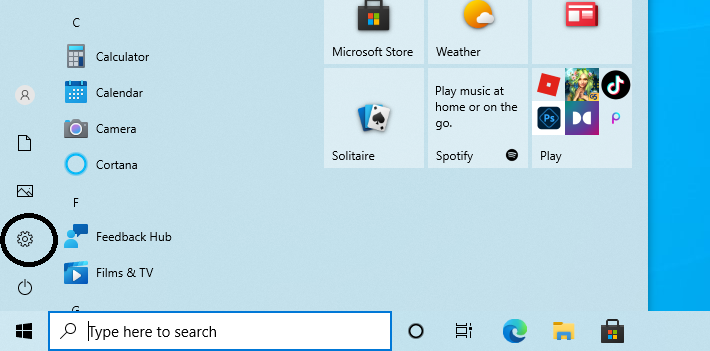
- Click the Start button in the bottom left corner of your screen.
- Click on the Settings button just above the Power button on the left of the Start menu.
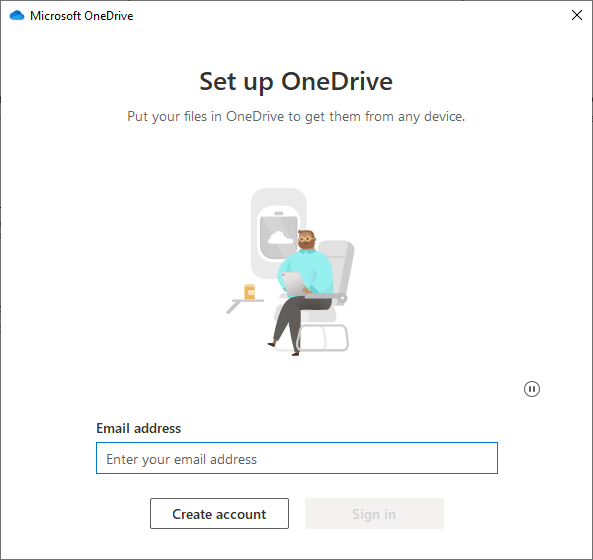
- In the Settings menu, click Sign In under the OneDrive logo.
- At this point you will either have to create a Microsoft account or log into one that you already have by entering your e-mail address and password.
- Next, choose a location on your computer for a dedicated OneDrive folder, or just let OneDrive choose an appropriate place and click next. This folder lets you backup files by copying them into it.
- Now, you can choose what you want OneDrive to back up, below you can see that I can backup the contents of my Desktop, Documents, and Pictures folders; these will automatically update when I make a change as long as I am connected to the internet.

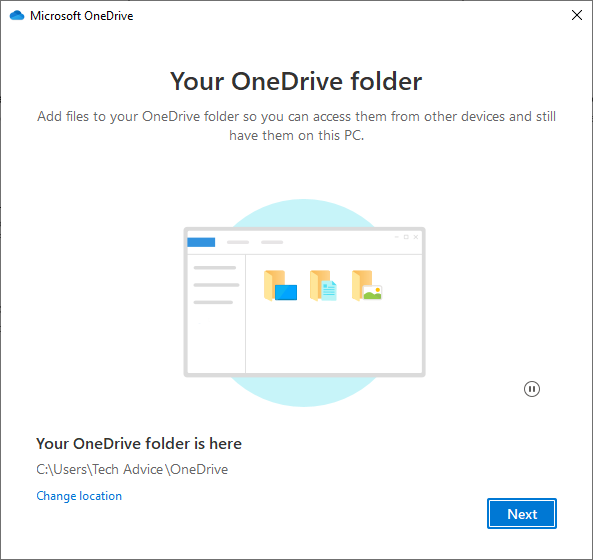

As mentioned above, you can copy and paste individual files, and folders of files, into the dedicated OneDrive folder that you created during the set up process. These files will then be backed up and accessible on other devices that are logged into your OneDrive account. Another thing to be aware of is that you can download the OneDrive app onto your smartphone or tablet to access the files you backed up on your PC as long as you use the same Microsoft account.
So that concludes today’s blog article on backing up to the cloud using OneDrive, as I mentioned earlier, if you would like to know how to back up using Google Drive let me know in the comments either here or on Facebook. If you need help setting up OneDrive you can contact Tech Advice using the details on the Contact Information page of this website. Next time I will be looking at how to back up using dedicated backup software.
 Tech Advice